
 MVP Profile
 Try my app HoloATC!
  HoloLens 2
 Magic Leap 2
 Meta Quest
 Android phones
 Snap Spectacles
 Buy me a drink ;)
 BlueSky
 Mastodon
 Discord: LocalJoost#3562
Dynamic data-driven scrollable button menu construction kit for Snap Spectacles part 1 - usage
If you have played with my Spectacles lens HoloATC you might have noticed the start menu with a scrollable list of buttons, which allows you to choose airports. This is a dynamic menu, that gets its data by downloading it from a service on Microsoft Azure. A list of data is dynamically translated into a scrollable list of buttons. I have turned that into a reusable and extendable component - well, more like a construction kit - that you can plug into your own lens for use.
This will be a two part blog post. This first post is relatively short and explains how to use it, the next one will describe more in detail how it works. If just you want to use it, this post should get you going.
How does it look?
Well, like this.

And if you press buttons, you see per button two messages in the logger:

Both the button and the menu itself print out what button is pressed. That is all for now - it’s yours to decide what you actually want the events to do. The menu is a just frame, also stays neatly in view, but that’s all standard Spectacles Interaction Kit components. The only thing I added is a custom close button.
How can it be used?
Very fast and high over:
- Make a prefab with a UIKit BaseButton, and make sure is has a
BaseUIKitScrollButtonControllercomponent (or a child class of that) - Drag the ScrollMenu’s prefab onto the scene
- Drag your button prefab on the input field “Scroll Button Prefab” of the ScrollMenu’s
UIKitScrollMenuControllercomponent. - Create a bootstrapper script
- Give that a reference (@input) to a
UIKitScrollMenuController - Drag the ScrollMenu’s
UIKitScrollMenuControlleron that input - The bootstrapper script somehow gets a feed of data, and turns in into a list of
BaseScrollButtonData- or a list ofBaseScrollButtonDatachild classes. - It feeds that list into
UIKitScrollMenuController.createButtons - And the buttons will be created.
Now if that went a bit too fast, I will go over it into more detail
Button and button controller
The UIKitScrollMenuController, which I will talk about later, instatiates buttons within its scroll list, so it needs something to instatiate. If you look into the demo project, you will see an example of how such an instantiable button prefab might look. My example is called, very orignally, MyButton. This has a couple of rather standard components, and it also has a MyButtonController.
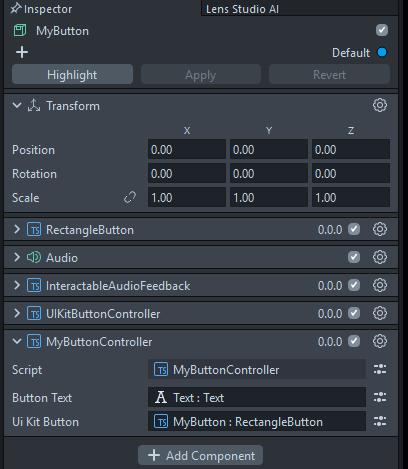
It is defined like this:
import { BaseScrollButtonData } from "LocalJoost/Ui/ScrollWindow/Scripts/BaseScrollButtonData";
import { BaseUIKitScrollButtonController }
  from "LocalJoost/Ui/ScrollWindow/Scripts/BaseUIKitScrollButtonController";

@component
export class MyButtonController extends BaseUIKitScrollButtonController {
    protected applyCustomSettings(scrollButtonData: BaseScrollButtonData): void {
        super.applyCustomSettings(scrollButtonData);
        this.uiKitButton.onTriggerDown.add(() => {
            print("From MyButtonController: button pressed: " + scrollButtonData.buttonText);
        });
    }
}
Your button controller must inherit BaseUIKitScrollButtonController. It inherits a Text and a UIKitButton @input field from it, and those must be set in the editor. The base class does a lot of useful things, setting the button text amongst others. It also gives you an applyCustomSettings method to override, in this case it rather trivially prints out to the logger that it is pressed, and shows the button text from the BaseScrollButtonData that it has been fed.
BaseScrollButtonData
This is a very simple data class from which buttons are created and every buttons gets fed such a BaseScrollButtonData object (or a child class)
export class BaseScrollButtonData {
    public buttonText: string;
}
As stated, you can also make a child class that contains lots more data fields, and do something interesting with it to the button in the override of applyCustomSettings of your custom equivalent of MyButtonController. For instance, you can add a color attribute and give every button a different color. Or, like I did, you can add attributes that hold location, altitude, name and the IATA airport code of an airport and use that to select a location on a map when a button is pressed.
Configure ScrollMenu prefab
The whole menu is fit within the ScrollMenu prefab. Drag this prefab onto your scene. The prefab has a couple of inputs you can fill, all of which can be ignored - apart from the Scroll Button Prefab input: that must contain a prefab. Drag your Button prefab on that field
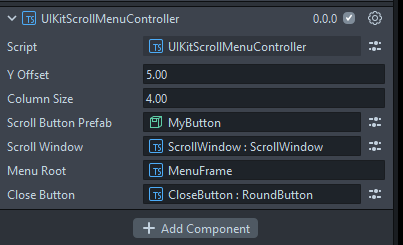
and the ScrollMenu is almost ready to go.
Feed the menu and listen to the menu
As wrote before, the menu needs a list of BaseScrollButtonData data objects containing at least the button text to be able to generate a list of buttons. This is a sample of a bootstrapper script that does just that:
import { BaseScrollButtonData } from "LocalJoost/Ui/ScrollWindow/Scripts/BaseScrollButtonData";
import { UIKitScrollMenuController } from "LocalJoost/Ui/ScrollWindow/Scripts/UIKitScrollMenuController";

@component
export class ScrollButtonDataLoader extends BaseScriptComponent {
    @input scrollMenuController: UIKitScrollMenuController

    private onAwake(): void {
        const buttonDataArray: BaseScrollButtonData[] = [];
        for (let i = 1; i <= 20; i++) {
            const buttonData = new BaseScrollButtonData();
            buttonData.buttonText = "Button " + i;
            buttonDataArray.push(buttonData);
        }
        this.createButtons(buttonDataArray);
        this.scrollMenuController.onButtonPressed.add((data) => {
            print("From UIKitScrollMenuController: button Pressed: " + data.buttonText);
        });
    }
}
This script needs an reference to the menu’s UIKitScrollMenuController so in can call it’s method createButtons method.
In real use, buttonDataArray would be filled by reading a data stream from the web or some kind of configuration file. However, in this simple sample I just make them locally. But the scrollMenuController also exposes and event onButtonPressed to which you can subscribe and do something with, although here we also just print out the data that was fed to the button, just to show it works.
Some bits and pieces
The UIKitScrollMenuController also features a setMenuVisible method which you can use to turn the menu of or off from the outside, without having to reload the data using the ScrollButtonDataLoader or whatever you want to call your loader script.
Make sure your scripts lives in a scene object under the actual ScrollMenu prefab, otherwise you most likely will run into the dreaded “Compent not yet awake” error.
For the sake of completness: this menu needs both the Spectacles Interaction Kit and UIKit to be installed.
The demo project with all the neccesary components can be found here.