
 MVP Profile
 Try my app HoloATC!
  HoloLens 2
 Magic Leap 2
 Meta Quest
 Android phones
 Snap Spectacles
 MetaLense 2
 Buy me a drink ;)
 BlueSky
 Mastodon
 Discord: LocalJoost#3562
Protecting your Entra token on Snap Spectacles with a PIN code
A few weeks ago I wrote an article about authenticating Snap Spectacles with Microsoft Entra using Device Code Flow. At the end of that article I noted that the PersistentStorageTokenStore I had built was fine for a demo, but not quite right for an enterprise deployment: as long as the refresh token sits there in plain JSON, anyone who puts on your Spectacles is you as far as your backend is concerned. I promised I might write a better ITokenStore fix in a follow-up post. This is that follow-up post.
What is the idea?
The Spectacles themselves have no user authentication that we, as lens developers, can piggyback on. So if we want any kind of “prove it’s really you” before using the stored token, we have to do it ourselves inside the lens. The simplest thing that could possibly work is, of course, a PIN code: the user picks one the first time they log in, we use it as an encryption key for the token, and from that point on the lens can only recover the token if the user types the PIN again.
The nice side effect is that the token on disk is no longer readable at all without the PIN, which should calm your Compliance Officer down a bit (although as I wrote last time, I still don’t think anything but the lens itself can read that storage anyway, but let’s not argue with Compliance Officers).
So this is what I built. After you have authenticated, you get asked to enter your pincode twice, then you login:
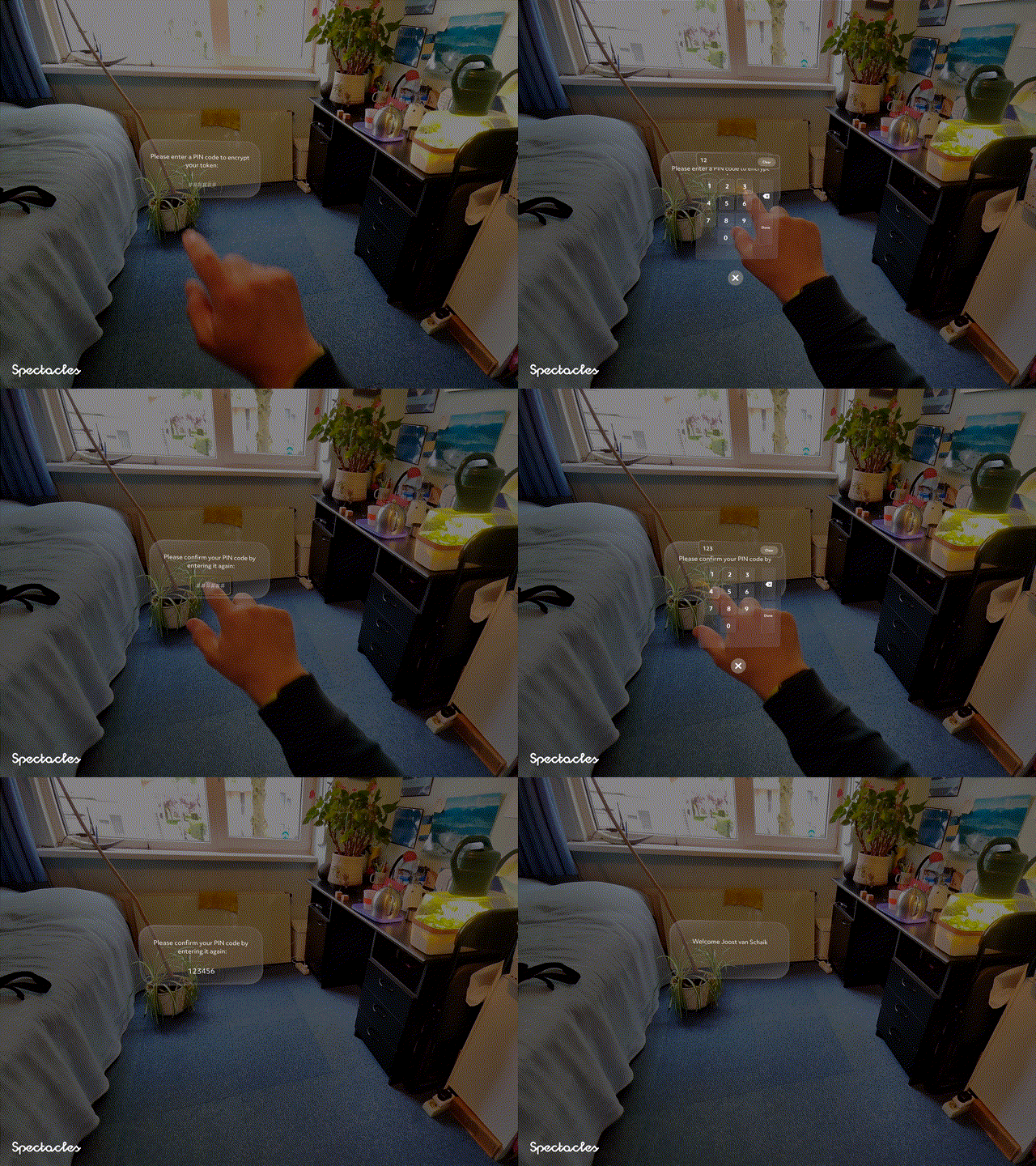
And when you start the lens for the second ir later time time you can login with just your pin.
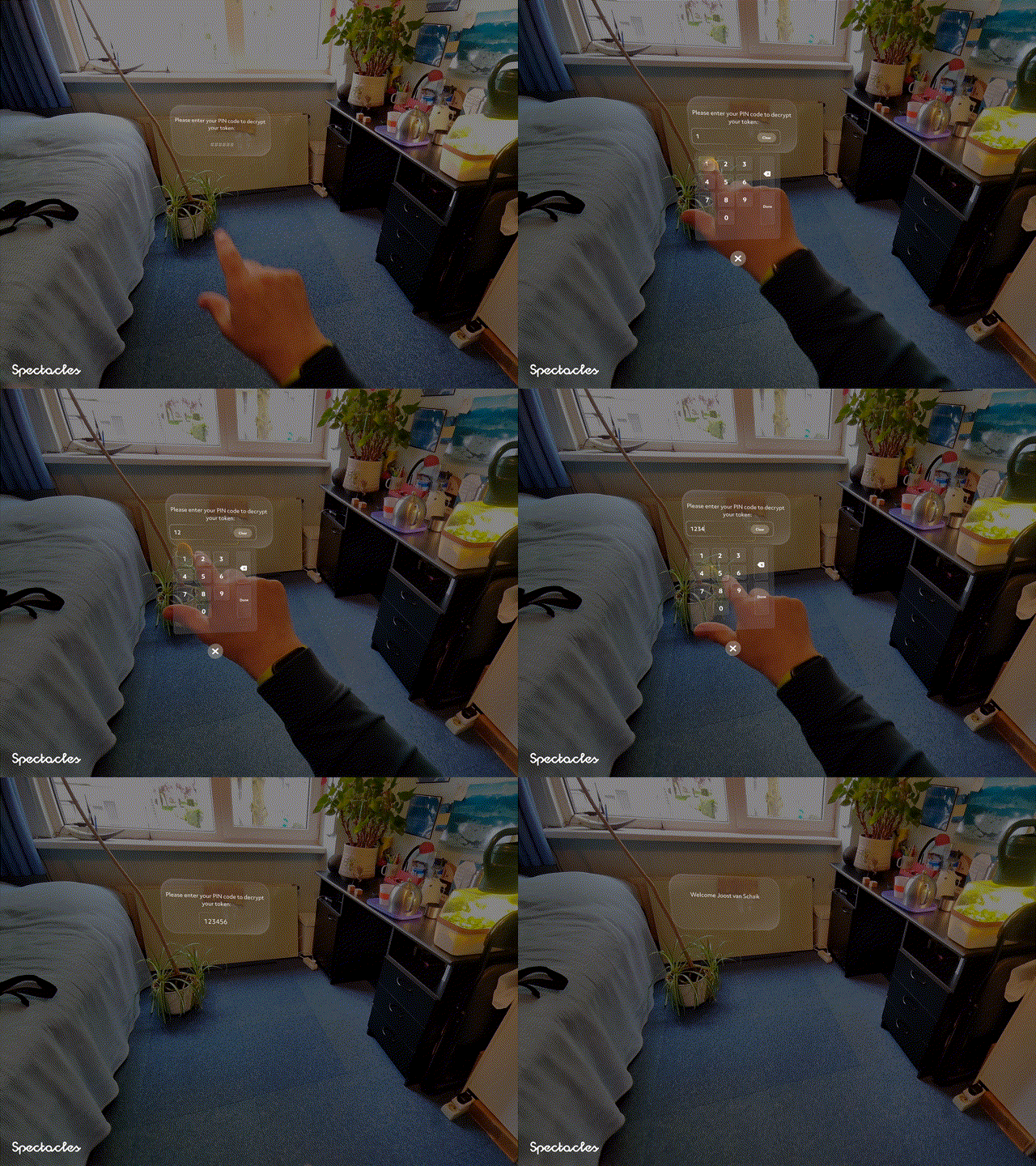
That PIN is actually used in the encryption. No PIN, no decryption, no token, no service calls. And you can even use the Spectacles app on your phone to type in the pin, which usually is easier than using a floating keyboard.
The only new interface you need to know about
The whole story really boils down to one new service interface:
export interface IPincodeRequestService {
    askForPinCode(requireConfirm: boolean): Promise<string>;
}

export function IPincodeRequestService() {}
This is the contract between the token store (which needs a PIN to do its job) and whatever part of your app happens to know how to talk to the user. The requireConfirm flag is the difference between “pick a new PIN” (ask twice, make sure the user entered the same thing both times) and “enter your existing PIN” (ask once).
The empty function at the bottom is the service token I wrote about in my service-driven development article.
The new token store
With that interface in hand, the new EncryptedPersistentStorageTokenStore is pretty readable. Here is the main part:
import AESEncryptionHandler from "LocalJoost/Security/AESEncryptionHandler";
import { AccessToken } from "./AccessToken";
import { ITokenStore } from "./ITokenStore";
import { IPincodeRequestService } from "./IPincodeRequestService";
import { ServiceManager } from "../ServiceManager";

export class EncryptedPersistentStorageTokenStore implements ITokenStore {
    private store: GeneralDataStore = global.persistentStorageSystem.store;
    private readonly tokenKey: string = "encrypted_access_token";
    private pinCode = ""
    private pinCodeRequestServiceCache: IPincodeRequestService;
    private readonly maxRetries : number = 3;

    public async getToken(): Promise<AccessToken | null> {
        const token = await this.getEncryptedTokenFromStore();
        if (token) {
            return AccessToken.fromJSON(JSON.parse(token));
        }
        return null;
    }

    public async setToken(token: AccessToken): Promise<void> {
        if(!this.pinCode) {
            this.pinCode = await this.pinCodeRequestService.askForPinCode(true);
        }
        var encryptedToken = AESEncryptionHandler.encryptWithPin(JSON.stringify(token), this.pinCode);
        this.store.putString(this.tokenKey, encryptedToken);
    }

    public async clearToken(): Promise<void> {
        this.store.remove(this.tokenKey);
        this.pinCode = "";
    }
    ...
}
A few things to notice:
- The PIN is kept in memory after the first successful entry. So you only get prompted once per lens session, not on every token refresh. This prevents the decryption having to happen every time the PIN is asked. On
clearToken(that is, on logout) we wipe it again. setTokenwithrequireConfirm: true- when a token is being stored, we’re either doing it for the first time ever, or the user has just logged in again after a logout. Either way they need to set a PIN, not recall one, so we make them confirm it.getTokenwithrequireConfirm: false- the user is trying to unlock an existing token, so asking once is enough.- The
pinCodeRequestServiceCacheis just a lazy lookup into theServiceManager. This is because theIPincodeRequestServiceis typically registered by some UI component, and the token store may already exist before that UI is ready. Looking it up on first use avoids initialization-order headaches.
The actual encryption happens in AESEncryptionHandler.encryptWithPin. More about that in a minute. First, the other half of getEncryptedTokenFromStore:
private async getEncryptedTokenFromStore(): Promise<string> {
    const encryptedToken = this.store.getString(this.tokenKey);
    if (!encryptedToken) {
        return null;
    }
    var retries: number = this.maxRetries + 1;

    var unencryptedCode : string
    while (!unencryptedCode && retries > 0) {
        if(!this.pinCode) {
            this.pinCode = await this.pinCodeRequestService.askForPinCode(false);
        }
        unencryptedCode = AESEncryptionHandler.decryptWithPin(encryptedToken, this.pinCode);
        if(!unencryptedCode) {
            this.pinCode = "";
        }
        retries--;
        if( retries === 0) {
            this.clearToken();
            throw new Error("Maximum retries reached. Please re-authenticate the device.");
        }
    }
    return unencryptedCode;
}
The logic is:
- If there’s no token in storage, there’s nothing to decrypt. Return null, and the service will fall through to a fresh device code flow.
- If there is a token, ask for the PIN and try to decrypt.
- Wrong PIN?
decryptWithPinreturns null (more on that in a minute), we throw away the cached PIN, and ask again. - After three wrong PINs, give up, wipe the encrypted token from storage, and throw. The user is forced to do a fresh device code flow, which is exactly what you want: a thief with a stolen pair of Spectacles doesn’t get unlimited guesses.
The encryption itself
Spectacles doesn’t ship with a crypto API, so I dropped in a slighty modified version of crypto-js as a vendored library under LocalJoost/Security/crypto-js. Around it sits AESEncryptionHandler, which does two things: plain AES-CBC (given a key and IV), and a PIN-based variant that derives the key from the PIN.
The PIN-based variant is what the token store actually uses:
public static encryptWithPin(plainText: string, pin: string): string {
    try {
        const salt = CryptoJS.lib.WordArray.random(16);
        const iv = CryptoJS.lib.WordArray.random(16);

        const key = CryptoJS.PBKDF2(pin, salt, {
            keySize: 256 / 32,
            iterations: 1000
        });

        const ivHex = iv.toString();
        const encryptedCiphertext = AESEncryptionHandler.encrypt(
            plainText,
            "hex:" + key.toString(),
            "hex:" + ivHex
        );
        if (!encryptedCiphertext) {
            return null;
        }

        // Format: salt (32 hex chars) + iv (32 hex chars) + ciphertext (hex)
        return salt.toString() + ivHex + encryptedCiphertext;
    } catch (error) {
        print("Encryption error: " + error);
        return null;
    }
}
For the non-cryptographers: a PIN code like “123456” is way too short and predictable to use as an encryption key directly. PBKDF2 takes the PIN and a random salt, chews on them for 1000 iterations, and spits out a proper 256-bit key. The salt is different every time you encrypt, which is why you can’t just store key = f(pin) somewhere and be done with it - you need the salt alongside the ciphertext to reconstruct the key later.
The IV (initialization vector) is also random per encryption and also needs to be stored alongside. So the output format is simply salt_hex + iv_hex + ciphertext_hex, all glued into one string. Decryption reverses it:
public static decryptWithPin(encryptedText: string, pin: string): string {
    try {
        // Extract salt (first 32 hex chars = 16 bytes), IV (next 32), and ciphertext (rest)
        const salt = CryptoJS.enc.Hex.parse(encryptedText.substring(0, 32));
        const ivHex = encryptedText.substring(32, 64);
        const ciphertextHex = encryptedText.substring(64);

        const key = CryptoJS.PBKDF2(pin, salt, {
            keySize: 256 / 32,
            iterations: 1000
        });

        return AESEncryptionHandler.decrypt(
            ciphertextHex,
            "hex:" + key.toString(),
            "hex:" + ivHex
        );
    } catch (error) {
        print("Decryption error: " + error);
        return null;
    }
}
Chop the stored string into three pieces, re-derive the key from the PIN and the salt, and ask AES to decrypt. If the PIN was wrong, CBC with PKCS7 padding will typically fail the padding check and crypto-js will throw - which is why the whole thing is wrapped in a try/catch that returns null on failure. That’s what the retry loop in the token store keys off of.
There’s also a test() method in there that does a round-trip with "123456" and verifies a wrong PIN returns null. Handy for when you’re poking at it in the editor and wondering why nothing works - usually it’s because you forgot to actually register the service.
A little ripple effect on the interface
Making the token store wait for user input means ITokenStore itself had to become async. It used to be:
interface ITokenStore {
    getToken(): AccessToken | null;
    setToken(token: AccessToken): void;
    clearToken(): void;
}
Now it’s:
interface ITokenStore {
    getToken(): Promise<AccessToken | null>
    setToken(token: AccessToken): Promise<void>;
    clearToken(): Promise<void>;
}
Which means EntraDeviceCodeFlowAuthenticationService.authenticate needs a couple of awaits sprinkled in, and, more importantly, a try/catch around the initial getToken, because that’s the call that can now throw the “maximum retries reached” error I just described:
public async authenticate(): Promise<AccessToken> {
    var currentToken: AccessToken | null = null;
    try{
        currentToken = await this.tokenStore.getToken();
    } catch (error) {
        var errorMessage = error instanceof Error ? error.message : String(error);
        this.trace(errorMessage);
        this.UserActionRequiredEvent.invoke(errorMessage);
        await this.awaitableSleep.sleep(3);
    }
    ...
}
If the user fails the PIN three times, we show them the error via UserActionRequiredEvent, wait three seconds so they can actually read it, and then fall through to the normal “no valid token, start device code flow” path. Which is the correct behaviour: you got locked out, so go log in again.
The old PersistentStorageTokenStore is still there, by the way. It just got its method signatures updated to async/Promise. If you don’t want PIN protection you can still use it - just revert the line in EntraBootstrapper that we’ll look at next.
Wiring it all up
The bootstrapper is almost the same as before. The one-line difference:
var entraService = new EntraDeviceCodeFlowAuthenticationService(
    this.tenantId, this.clientId, new EncryptedPersistentStorageTokenStore(), true);
EncryptedPersistentStorageTokenStore instead of PersistentStorageTokenStore. That’s it. Everything else, the tenant ID, the client ID, the service registration, all unchanged.
The other bit of wiring is on the UI side. Something has to actually implement IPincodeRequestService and pop up a keyboard when the token store calls askForPinCode. For the demo I let EntraSampleUIWindow do double duty: it’s both the thing that shows the welcome messages and the thing that asks for the PIN. In a real app you would probably make a dedicated component, but for a sample this keeps the moving parts to a minimum.
In the scene, I added a TextInputField (one of the new UIKit components) to the prefab and hooked it up to a new @input:
@input private pincodeInput: TextInputField;
In onAwake we register ourselves as the implementation:
var serviceManager = ServiceManager.getInstance();
serviceManager.register(IPincodeRequestService, this);
this.entraService = serviceManager.get(IEntraDeviceCodeFlowAuthenticationService);
And then the actual implementation of the interface method:
public async askForPinCode(requireConfirm: boolean): Promise<string> {
    var validPinCodeObtained = false;
    this.pincodeInput.sceneObject.enabled = true;
    var pinCode: string = "";
    do {
        this.showMessage(requireConfirm ? "Please enter a PIN code to encrypt your token:" : "Please enter your PIN code to decrypt your token:");
        pinCode = await this.waitForInput();
        if (!requireConfirm) {
            validPinCodeObtained = true;
        }
        else {
            await this.awaitableSleep.sleep(0.25);
            this.showMessage("Please confirm your PIN code by entering it again:");
            var confirmPinCode = await this.waitForInput();
            if (pinCode !== confirmPinCode) {
                this.showMessage("PIN codes do not match. Please try again.");
                await this.awaitableSleep.sleep(3);
            } else {
                validPinCodeObtained = true;
            }
        }
    }
    while (!validPinCodeObtained)
    await this.awaitableSleep.sleep(2);
    this.pincodeInput.sceneObject.enabled = false;
    return pinCode;
}
Enable the input field, show the right prompt, wait for the user, and if we’re in “pick a new PIN” mode, ask again and loop until the two entries match. When we’re done, hide the input field so it doesn’t clutter the rest of the flow. Note again the reappearance of the trusty AwaitableSleep.
The only mildly interesting bit is waitForInput:
private async waitForInput(): Promise<string> {
    this.pincodeInput.text = "";
    this.enterTestPinCode();
    return new Promise((resolve) => {
        const handler = () => {
            const input = this.pincodeInput.text.trim();
            if (input.length >= 6) {
                this.pincodeInput.onTextChanged.remove(handler);
                global.textInputSystem.dismissKeyboard();
                resolve(input);
            }
        };
        this.pincodeInput.onTextChanged.add(handler);
    });
}
The UIKit TextInputField fires onTextChanged on every keystroke. We wait until there are at least 6 characters, then call it done, remove the handler, dismiss the keyboard, and resolve the promise. No explicit “submit” button needed.
And finally a confession - typing a PIN on the virtual keyboard in the Lens Studio editor is annoying, so I cheated:
private enterTestPinCode() : void {
    if (!global.deviceInfoSystem.isEditor()) return;
    const delayedEvent = this.createEvent("DelayedCallbackEvent");
    delayedEvent.bind(async () => {
        this.pincodeInput.text = "123456";
    });
    delayedEvent.reset(2);
}
Two seconds after the prompt appears, if we’re running in the editor, the field is auto-filled with 123456. On the actual device this does nothing. Small quality-of-life hack that will save you a lot of typing while developing.
Trying it out
Run the lens once, go through the device code flow on your computer as before. After you log in, you’ll get prompted to pick a PIN. Enter it twice. The token is now encrypted in storage.
Stop the lens. Start it again. You’ll get asked for your PIN. Enter it, and you’ll get the welcome message without having to go through device code flow again. Enter the wrong PIN three times and it will kick you out and restart the device code flow.
In the editor you’ll actually see things happening in the debug console if you leave verbose on, which is kind of fun. On device it all just works.
One last caveat
I want to be very clear: this is a solution, not the solution. A 6-digit PIN encrypted with PBKDF2-1000 is not going to hold up against a determined attacker with the encrypted blob in hand. 1000 iterations is on the low side by 2026 standards and a six-digit numerical PIN has only a million possible values. Also, I think there needs to be protection against stupidly simple PIN codes like 000000, 111111 and the 123456 I showed in the demo because you know people are going to pick those stupid codes if you let them. But on Spectacles, as I wrote last time, there is (as far as I know) no way to get the encrypted blob out of the lens’ persistent storage in the first place, so brute-forcing it is not a realistic attack. What this does protect against is the much more mundane scenario: someone picks up your glasses, puts them on, and fires up the lens. Without the PIN, they get nothing, and your enterprise backend is not going to hand out data to a stranger. That’s a lot better than where we were last month.
If your threat model is scarier than that, you probably want a proper secure enclave, hardware attestation, and a team of people with ‘CISSP’ on their LinkedIn. I wish you all the best.
Code, as always, can be found at GitHub - in the pincode-protected branch.